
Follow the steps below to connect your Omnidots SWARM to a WiFi network.
1. Find SWARM WiFi Password → 2. Connect to SWARM → 3. Configure WiFi
⚠️ Important: Due to a recent browser update, WiFi configuration may not work properly when using Google Chrome, Microsoft Edge, Vivaldi, or Brave. Please use Firefox, Safari, or an Apple or Google Pixel device when configuring your SWARM.
Step 1: Find Your SWARM WiFi Password in Honeycomb
-
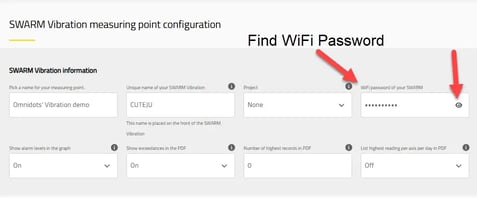
On your own device, go to Honeycomb and log in, or create a Honeycomb account. Go to the Measuring Point Configuration Page.
-
The WiFi password can be found once a measuring point has the SWARM assigned and the configuration has been saved. Click the eye icon to view the WiFi password. Carefully copy the password to use in Step 3.
Step 2: Connect Your SWARM to WiFi
A. Power on the SWARM
-
Place the SWARM on a stable surface and connect it to power.
-
⏱️ Wait approximately 15 seconds for the SWARM to start.
-
⚠️ You will have 5 minutes to complete Step B
-
Note: If more than 5 minutes have passed, restart the SWARM and begin again at Step 2.A.
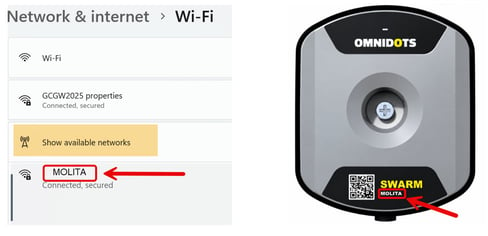
B. On your personal device (computer, laptop, phone, tablet, etc.), search for available WiFi networks.
-
Find the network with the Name of your SWARM. You can find your SWARM name on the front of the device.
-
Select the SWARM WiFi that matches your SWARM Name and connect.
C. A Captive Portal will now pop up with the SWARM Configuration Menu in your internet browser.
-
If it doesn’t, see the Troubleshooting Guide below
Step 3: Configure the SWARM WiFi Connection
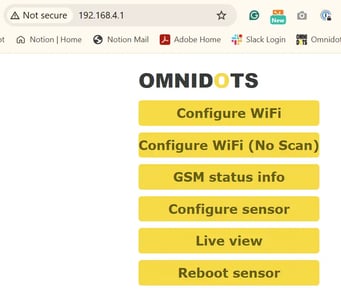
As soon as the SWARM WiFi connection has been established, most devices will automatically open the pop-up SWARM configuration menu within 30 seconds. We recommend using Safari or Firefox.
Note: If the configuration menu does not open automatically, enter 192.168.4.1 into your web browser and see Troubleshooting Guide below.
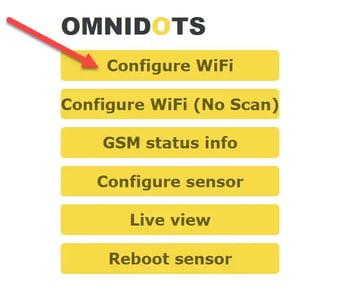
A. Click Configure WiFi.
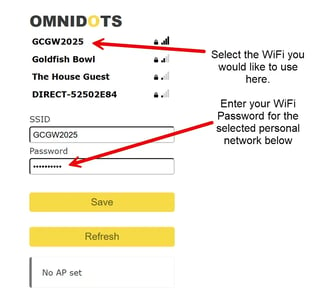
B. Select your desired available WiFi network and enter the password. Click Save. Alternatively, if you are using a hidden network, manually enter the SSID and password.
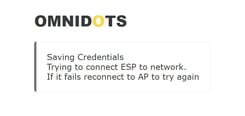
C. You will be redirected to a new page while the WiFi network credentials are saved. Wait 30 seconds on this page or until it automatically closes.
D. Unplug the SWARM and then plug it back in.
E. The SWARM will turn back on and finish the reboot in approximately 15 seconds  . Your SWARM will begin flashing a green/purple light. The SWARM now has a successful WiFi connection.
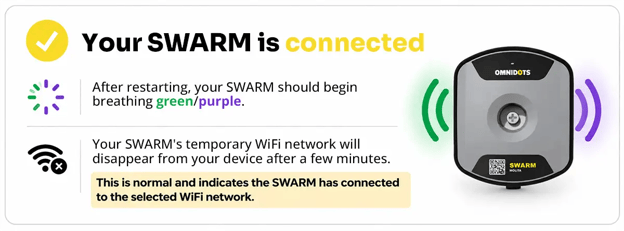
Note: Once your SWARM is connected to the WiFi network, the SWARM's own WiFi network with the SWARM Name will no longer be available or visible on your device. This is completely normal.
Reset the SWARM to Cellular (GSM)
Perform the Special Insertion Reboot below. This process sets the SWARM to the factory firmware and sets the device back to GSM without affecting configuration settings or recorded data.
Special Insertion Reboot Instructions
-
Plug in the power cable.
-
Wait for the LED to display white, then pull out the power cable.
-
Plug in the power cable.
-
Wait for the LED to display white, then pull out the power cable.
-
Plug in the power cable.
-
Wait for the LED to display white, then pull out the power cable.
-
Plug in the power cable.
-
The LED will blink blue rapidly and reboot. Do not unplug the SWARM until it has fully booted and the LED is breathing orange/white.
-
To enable the most recently used firmware version, power cycle by unplugging and plugging in the SWARM once more before it connects to the cell network, when the LED is breathing green/white.
Alternatively, allow the SWARM to connect to the network, and it will automatically download the latest firmware. This progress can be viewed on Honeycomb if the SWARM is attached to a Measuring Point.
Troubleshooting Questions
Q. My SWARM Name WiFi network isn't showing on Available Networks.
-
Restart the SWARM. After 5 minutes of inactivity, the SWARM WiFi turns off.
Q. The WiFi password for the SWARM network isn't working.
-
Try alternative characters that look similar, such as:
-
Lowercase “l” and uppercase “I”
-
Zero “0” and uppercase “O”
Q. I connected to the SWARM WiFi, but the configuration page didn't open.
-
Open a web browser and enter the following in the browser URL: 192.168.4.1
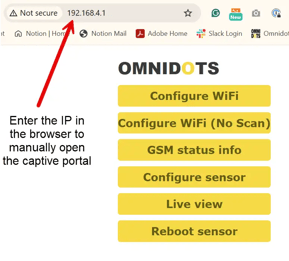
Important: After a recent update, we are experiencing issues with Google Chrome, Microsoft Edge, Vivaldi, and Brave. Please use an alternative browser, such as Firefox or Safari, for configuration.
Q. The WiFi network I want isn't showing on the SWARM WiFi configuration page.
-
Only 2.4 GHz networks work with SWARM sensors. 5 GHz networks will not be visible to the SWARM.
Q. The WiFi network has a landing page (captive portal). Can I still use it?
-
No, not directly. The SWARM cannot complete the sign-in or authorization page required by captive portal networks. Solution: Use a compatible third-party WiFi repeater or travel router to complete authorization and provide a standard WiFi connection for the SWARM.
Wi-Fi (like Hotel WiFi) → Captive Portal → Travel Router/Repeater → SWARM
Q. After restarting the SWARM, the LED is flashing orange/white. Please refer to our LED Color Guide for a complete list of SWARM LED colors and their meanings.
-
Orange/White – WiFi configuration is not enabled.
Ensure you are running the latest firmware version and try again using a browser other than Chrome or Edge for WiFi setup.
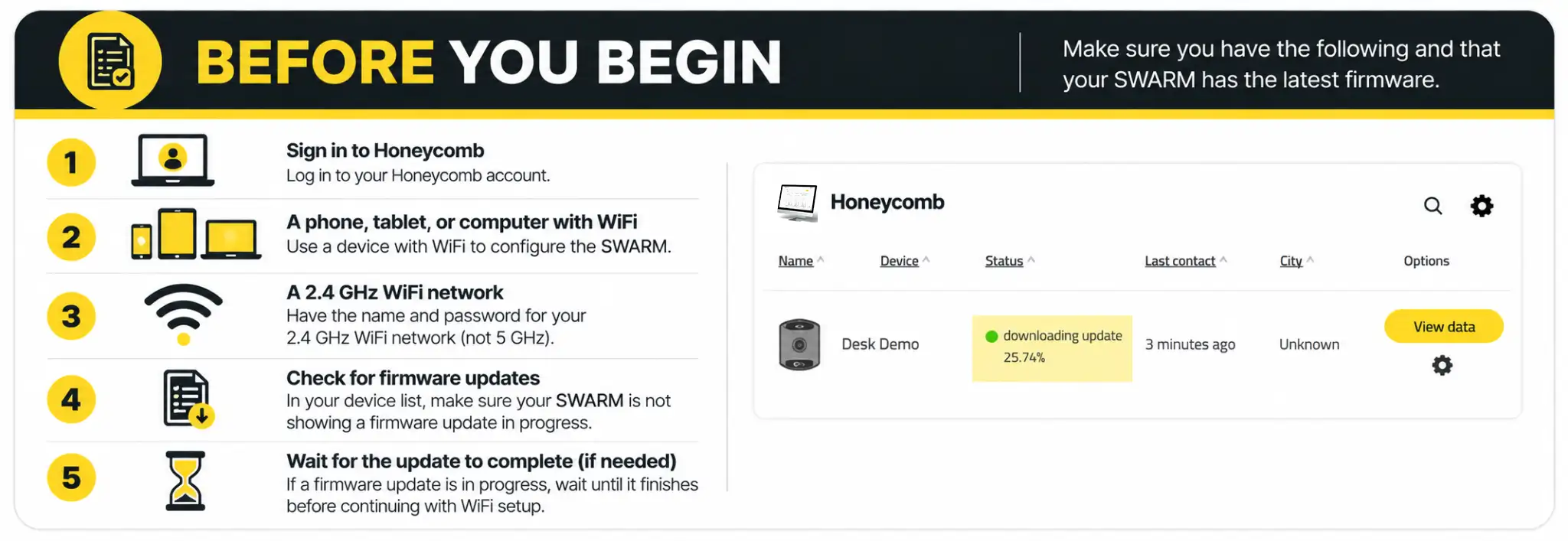
You can check if you are running the latest firmware by contacting Omnidots Support, or connecting the SWARM to a Measuring Point and letting the SWARM connect to a cell network. The Measuring Point “Status” will reflect if firmware is downloading or ready to install pending restart.
Q. After restarting the SWARM, the LED is breathing orange/purple.
-
Orange/Purple – WiFi is enabled, but the device did not connect to the cell network.
Check the WiFi configuration settings on the SWARM, especially the WiFi password.
🔗 See the SWARM Vibration LED color guide to understand what each LED color means.